A hard drive is the component in a laptop, tablet, or PC on which the operating system, programs, and all data are permanently stored. The name dates back to a time when only rigid, rotating magnetic disks were used – today the term also covers the SSD, which works entirely without moving parts. This article explains how a hard drive is generally built, what types exist, and which storage solution is used in RobustBook's rugged laptops and tablets – including the specific capacities and connector types found in the current models.
What Does a Hard Drive Do in a Laptop or Tablet?
The hard drive handles permanent storage: unlike working memory (RAM), which loses its contents when powered off, the data on the hard drive is retained. When a device starts up, the operating system is loaded from the hard drive, after which programs continuously access it to read and write files. How quickly this access happens depends largely on the type of hard drive.
How Is a Hard Drive Built?
Fundamentally, two design principles are distinguished:
Mechanical Design: the HDD
The classic HDD ("hard disk drive") stores data magnetically on rotating disks. A read/write head scans the magnetized surface without touching it, similar to a video tape. Because mechanical parts are in motion, the HDD is more sensitive to shocks than an electronic storage medium – one reason it plays virtually no role in rugged laptops and tablets anymore.
Electronic Design: the SSD
An SSD ("solid state disk") has no moving parts. It stores data electronically, comparable to a USB flash drive or an SD card. As a result, it is significantly less sensitive to shocks than an HDD and is better suited to mobile devices that are used in the field, on the construction site, or in the workshop.
The M.2 SSD: Same Storage Chip, Different Connector
The M.2 SSD is built electronically the same way as a regular SSD, but differs in shape and connector: it is rectangular, typically 22 millimeters wide and 60 or 80 millimeters long, and connects directly to the mainboard via a PCIe interface instead of a SATA cable. This allows it to achieve higher transfer speeds than an SSD with a SATA connector.
The Four Hard Drive Types at a Glance
- HDD – magnetic, rotating disks, mechanical, inexpensive at large capacities
- SSHD – HDD with additional flash storage as a buffer
- SSD – purely electronic, rugged, fast, usually in the 2.5-inch form factor
- M.2 SSD – electronic like the SSD, but connected directly to the mainboard via PCIe
A detailed comparison of all four types with their respective advantages and disadvantages is provided in the article What Hard Drive Types Are There and How Do They Differ?.
What Storage Solution Is Used in RobustBook's Rugged Laptops and Tablets?
Our rugged laptops are equipped with a PCIe SSD that, according to the comparison table, is "up to 4x faster" than a classic SATA hard drive, with a capacity of 256 GB to 1 TB depending on the model. SSD OPAL 2.0 encryption is also available as an option.
For the rugged tablets, the storage (SSD/NVMe) depends on the configuration. The Durabook R8, for example, comes standard with a 128 GB PCIe SSD and can optionally be upgraded to a 256 GB, 512 GB, or 1 TB PCIe SSD.
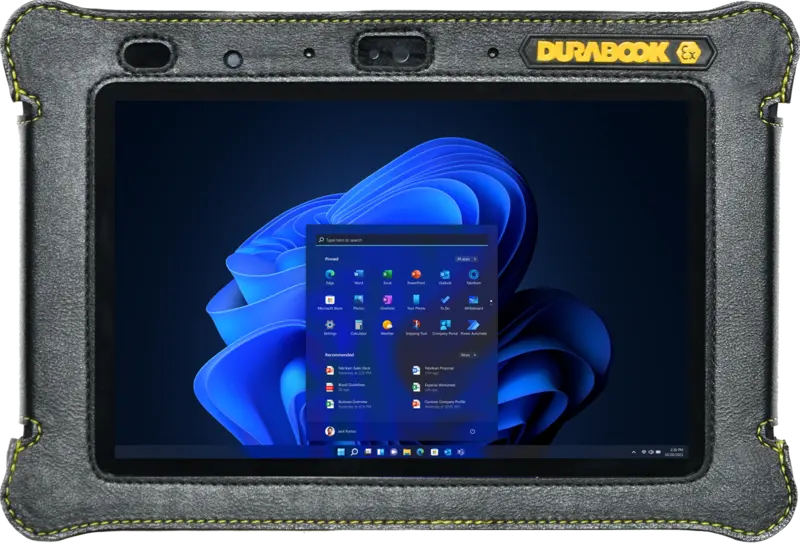
With the Durabook U11I, the range extends even further: a 256 GB PCIe SSD is installed as standard, with optional upgrades to 512 GB, 1 TB, or 2 TB PCIe SSD available. In addition, the SSD in this model sits in a removable canister, allowing it to be swapped without opening the housing.
A complete overview of the storage capacities and other technical specifications of all models is provided in the Laptop Comparison Table and the Tablet Comparison Table.
Why SSD and M.2 SSD Are Suited to Mobile Use
Because an SSD has no mechanical parts, shocks cannot damage any moving components, as they could with an HDD. For laptops and tablets that are used outdoors, on the construction site, or in the workshop, this is a significant advantage over a classic HDD.
This applies especially to use cases where devices are constantly transported, carried in vehicles, or set down on uneven ground: on the construction site, in the workshop, or in industry. In all of these environments, the hard drive is one of the components most affected by shocks – one reason why rugged laptops and tablets are fundamentally equipped with SSD rather than HDD technology.
How Much Storage Do I Need?
As a rough guide: around 250 songs or photos, or 2 movies, fit into 1 gigabyte of storage. 256 gigabytes is therefore enough for about 64,000 songs or photos, or around 512 movies. Anyone working mainly with image or video data should opt for the larger capacity – with RobustBook devices, the range goes up to 1 TB.
Two scenarios are especially common for mobile use: if the device is used mainly for diagnostic and control software in the workshop or industry, a smaller capacity is usually enough, since mainly programs and no large media files are stored. If, on the other hand, documentation is carried out on the construction site – for example with photos, measurements, and plans – storage needs grow noticeably faster, so a capacity toward the upper end of the available range makes sense.
Data Security: What Does SSD OPAL 2.0 Offer?
RobustBook's rugged laptops optionally offer SSD OPAL 2.0 encryption. OPAL is a standard for managing self-encrypting drives; the current version for notebooks is OPAL 2.0. The encryption is compatible with all operating systems and relieves the CPU, since the processing load is shifted to the SSD itself. The mechanism also provides a centrally managed security policy, automatic updates, as well as password recovery and user management. A detailed overview of all security features is provided in the article Ideal Laptop Protection: 5 Security Features and Protection Mechanisms Compared.
SATA, PCIe, and the Question of the Connector
HDD, SSHD, and the regular 2.5-inch SSD are usually connected to the mainboard via a SATA cable. The M.2 SSD instead uses a PCIe interface located directly on the mainboard – the same connector type also used for graphics cards. Because the data no longer takes the detour through a SATA controller, an M.2 PCIe SSD can achieve a higher transfer speed than a SATA SSD of the same storage capacity.
Why Is an SSD Faster Than an HDD?
With an HDD, the read/write head has to move mechanically to the correct position on the rotating disk before data can be read or written. This mechanical positioning takes time. An SSD has no such step, since it accesses the flash memory cells electronically. As a result, an SSD achieves a significantly shorter access time than an HDD and reads or writes data many times faster. This is especially noticeable when starting the operating system: a device with an HDD can take around a minute to boot, while a device with an SSD is usually ready for use much faster.
For professional use – for example when a diagnostic tool in the workshop or documentation software on the construction site needs to be available immediately – this shorter startup time is a practical advantage that goes beyond mere shock resistance.
Hard Drive or SSD: The Key Differences at a Glance
- Design: HDD mechanical with rotating disks, SSD and M.2 SSD purely electronic.
- Shock sensitivity: HDD more prone to mechanical failure, SSD and M.2 SSD without moving parts significantly less sensitive.
- Connector: HDD, SSHD, and regular SSD via SATA, M.2 SSD via PCIe directly on the mainboard.
- Form factor: HDD usually 3.5 inches, SSD usually 2.5 inches, M.2 SSD rectangular, 22 mm wide, 60 or 80 mm long.
- Use in rugged devices: RobustBook laptops and tablets rely exclusively on PCIe SSDs with 128 GB to 1 TB capacity, depending on the model and configuration.
Frequently Asked Questions
What Does SSD Stand For?
SSD stands for "Solid State Disk" or "Solid-State Drive" – an electronic storage medium without moving parts that stores data in flash memory cells, similar to a USB flash drive or an SD card.
What Is the Difference Between a Hard Drive and an SSD?
"Hard drive" is the umbrella term for all permanent storage media in a computer, while "SSD" specifically refers to the electronic design without moving parts. In everyday language, "hard drive" often means the classic, mechanical HDD, but in the technical sense the SSD is included as well.
What Hard Drive Types Are There?
There are four common types: HDD, SSHD, SSD, and M.2 SSD. A detailed comparison with their respective advantages and disadvantages can be found in the article What Hard Drive Types Are There and How Do They Differ?.
Which Hard Drive Does a RobustBook Rugged Laptop or Tablet Have?
All current RobustBook laptops and tablets are equipped with a PCIe SSD; none of the models is based on a classic HDD. The exact capacity depends on the model and ranges from 128 GB to 2 TB, see Laptop Comparison Table and Tablet Comparison Table.
HDD or SSD: What Matters for Rugged Devices
At its core, a hard drive is a storage medium – whether mechanical with rotating disks (HDD) or purely electronic (SSD, M.2 SSD). For rugged, mobile devices, the electronic design has prevailed because it is less sensitive to shocks and achieves higher transfer speeds. Which capacity and which connector fit a given case depends on the model and intended use.
If you are unsure which storage capacity is right for your use case – construction site, workshop, industry, or another field – a look at the comparison tables or a quick question to RobustBook can help. Since the configuration differs by model, it is worth matching the available capacities against your actual storage needs before ordering a device.